Managing Flash Recovery Area (FRA) Space Issues on Oracle Standby
Freeing Space in Oracle Database Flash Recovery Area”
Introduction
Hook:
Imagine walking into your control room and seeing a red alert: Flash Recovery Area (FRA) Usage: 98%. Panic? Don’t. This blog will equip you with a foolproof, step-by-step guide to reclaim precious space in your Oracle standby database, ensuring smooth operations without breaking a sweat.
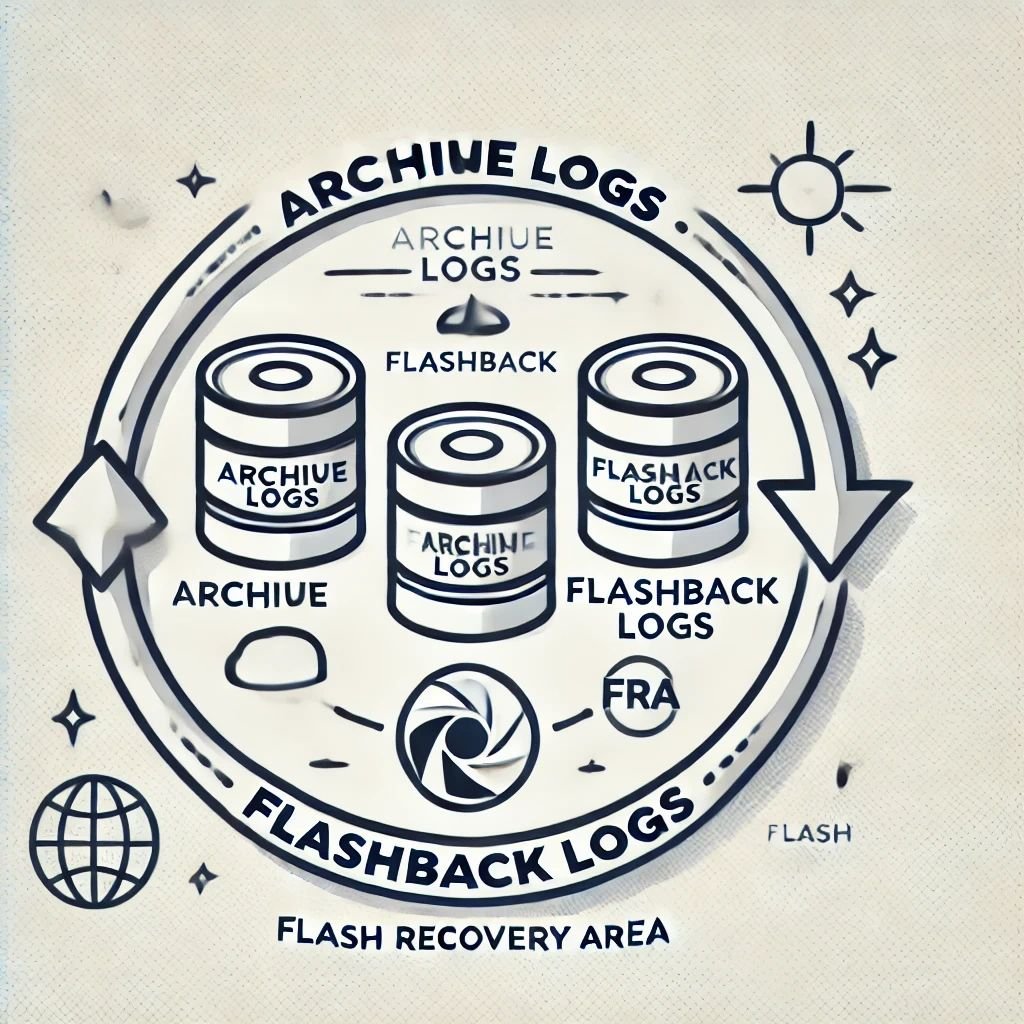
Why This Matters: The FRA is critical for managing backups, archive logs, and flashback logs. A full FRA can bring your database to its knees—causing redo apply to fail or backups to halt. Let’s prevent that.
Step 1: Understand the Problem
Before diving into solutions, gather facts:
- Check FRA Space Usage:
SELECT NAME, SPACE_LIMIT, SPACE_USED, SPACE_RECLAIMABLE, NUMBER_OF_FILES FROM V$RECOVERY_FILE_DEST;
- Example Output:
+RECOC1 SPACE_LIMIT: 43.98 TB SPACE_USED: 43.306 TB SPACE_RECLAIMABLE: 21.11 GB NUMBER_OF_FILES: 1302
- Breakdown Usage:
SELECT * FROM V$FLASH_RECOVERY_AREA_USAGE;
- Findings:
- Archivelogs: 80% of space
- Backups: 15%
- Flashback logs: 5%
Key Insight: Archive-logs dominate space—target them first.
Step 2: Clean Up Obsolete Files
Start small with manageable clean-ups:
- Delete Obsolete Backups:
RMAN> DELETE OBSOLETE;
This removes backups not needed based on your retention policy. - Purge Applied Archivelogs:
RMAN> DELETE ARCHIVELOG ALL BACKED UP 2 TIMES TO DISK; - Check Space Again:
SELECT SPACE_USED, SPACE_RECLAIMABLE FROM V$RECOVERY_FILE_DEST;
Step 3: Plan for Long-Term Space Management
What happens if your FRA keeps filling up? Time for proactive measures:
- Increase FRA Size:
ALTER SYSTEM SET DB_RECOVERY_FILE_DEST_SIZE = 50T SCOPE=BOTH;
- Pro Tip: Ensure your storage can handle the increase.
- Backup and Offload FRA Contents: Offload contents like archive logs to external storage:
RMAN> BACKUP RECOVERY AREA DELETE INPUT; - Adjust Retention Policies:
- Reduce redundancy:
RMAN> CONFIGURE RETENTION POLICY TO REDUNDANCY 1; - Or reduce recovery window:
RMAN> CONFIGURE RETENTION POLICY TO RECOVERY WINDOW OF 7 DAYS;
Step 4: Monitor and Automate
Set up regular monitoring to avoid surprises:
- Enable Alerts:
- Use Oracle Enterprise Manager or custom scripts to notify you when FRA usage exceeds 80%.
- Schedule Automated Cleanup:
- Example RMAN script:
RUN { BACKUP ARCHIVELOG ALL DELETE INPUT; DELETE OBSOLETE; }
Step 5: Validate Redo Apply
Ensure that clearing space doesn’t disrupt redo apply on the standby:
- Check Redo Apply Synchronization:
SELECT THREAD#, SEQUENCE#, APPLIED FROM V$ARCHIVED_LOG ORDER BY SEQUENCE#; - Monitor Database Role and Open Mode:
SELECT DATABASE_ROLE, OPEN_MODE FROM V$DATABASE;
Conclusion
With this guide, you’re equipped to handle high FRA usage like a pro. Remember, proactive space management is key to maintaining a healthy Oracle standby database. By monitoring regularly and automating cleanup tasks, you can focus on what truly matters—ensuring data availability and integrity.
Call to Action
Do you have your own story of battling FRA overflows? Share your insights in the comments below, or connect with me for more tips on Oracle database management!
This blog structure is designed to be unique, easy to follow, and engaging while effectively conveying the technical steps needed to resolve FRA space issues on an Oracle standby database.
Author: Rohit Mishri