
Creating an Autonomous Data Warehouse (ADW) and Enabling DG
Step-by-Step Guide to Creating an Autonomous Data Warehouse (ADW) and Enabling Autonomous Data Guard (ADG) for Switchover
Introduction
Oracle Autonomous Database (ADB) simplifies database management by offering a fully managed cloud database with built-in automation for tuning, security, and scaling. One critical feature of Autonomous Data Warehouse (ADW) is Autonomous Data Guard (ADG), which ensures high availability and disaster recovery by creating a Standby database that can take over if the Primary database fails.
This guide provides a step-by-step approach to:
- Creating an ADW instance
- Enabling Autonomous Data Guard
- Performing a Switchover between Primary and Standby
🚀 Step 1: Creating an Autonomous Data Warehouse (ADW)
To set up an Autonomous Data Warehouse (ADW) in Oracle Cloud Infrastructure (OCI):
1.1 Navigate to the OCI Console
- Log in to Oracle Cloud Console
- Go to “Autonomous Database” under the Databases menu.
- Click “Create Autonomous Database”.
📌 Screenshot: OCI Console – Create Autonomous Database Page
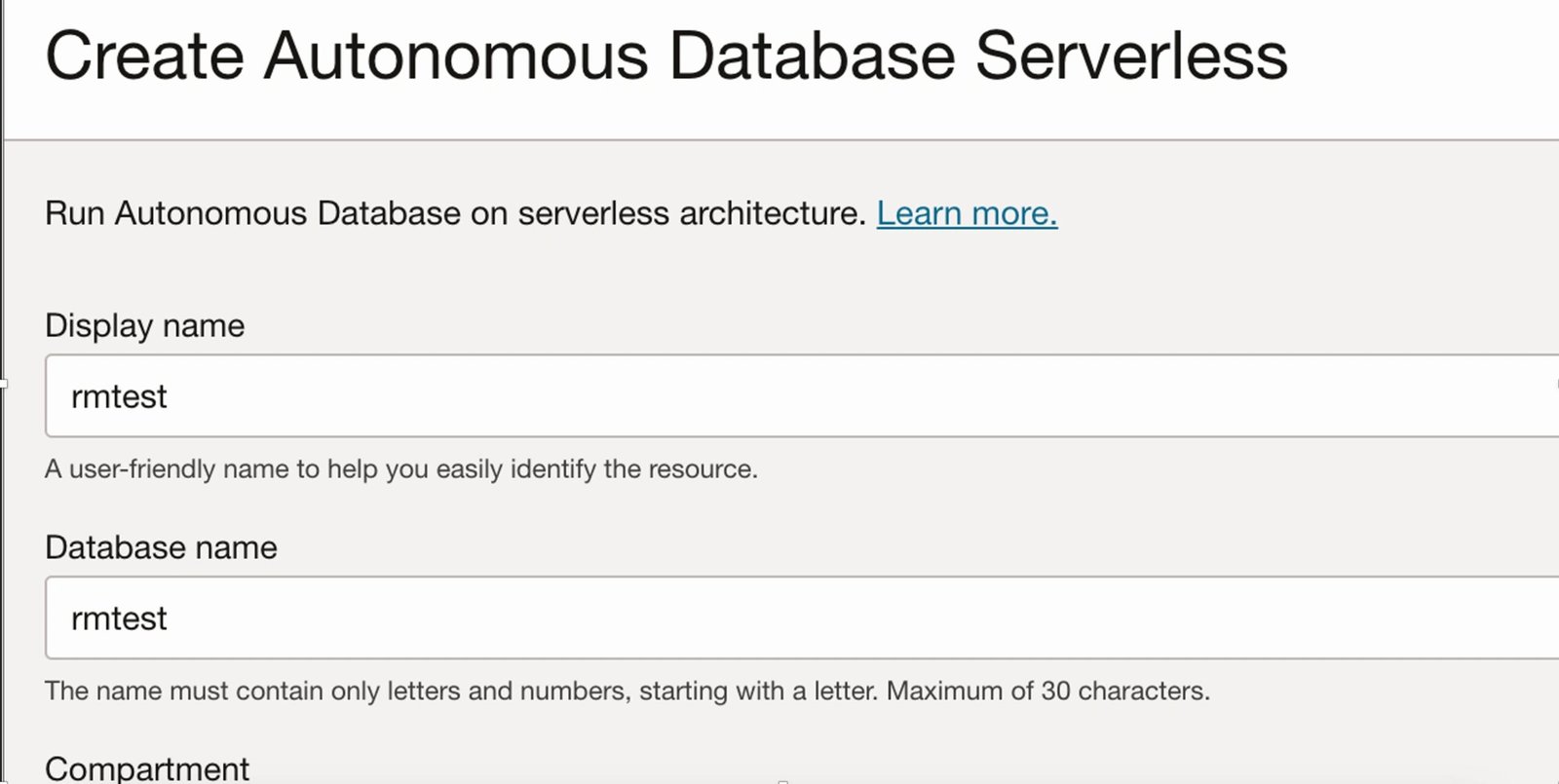
1.2 Configure Database Details
- Compartment: Select the correct OCI compartment.
- Display Name: Provide a name for your ADW instance.
- Database Name: Choose a unique database name.
- Workload Type: Select “Data Warehouse”.
- Deployment Type: Choose “Shared Infrastructure” (for standard ADW usage).
📌 Screenshot: Database Configuration Page
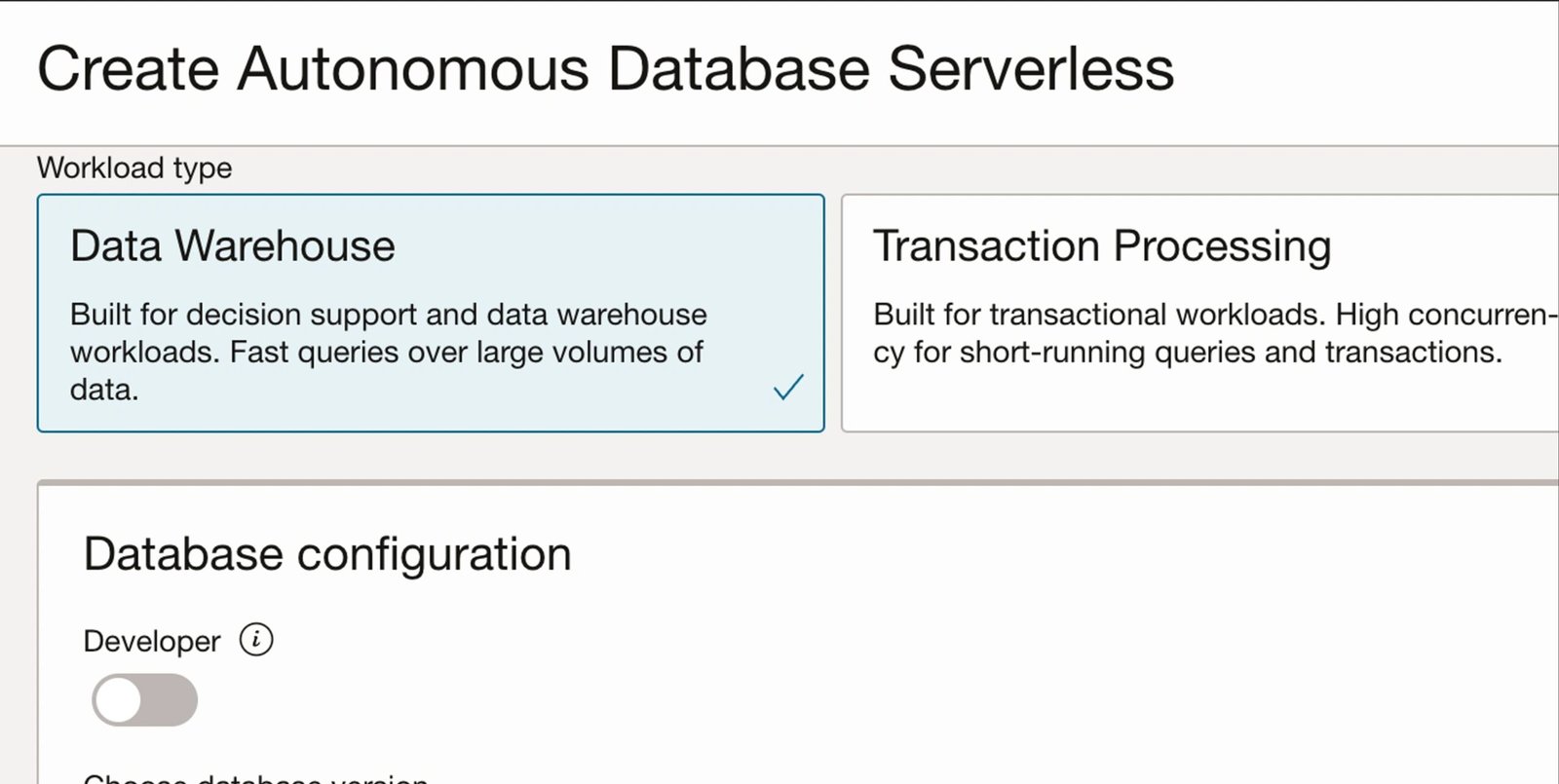
1.3 Set Compute & Storage
- Choose the CPU and Storage size.
- Enable Auto Scaling (recommended for performance optimization).
1.4 Network & Access Configuration
- Access Type: Configure whether the database is private or public.
- Vulnerability Protection: Enable Autonomous Data Guard (Optional) at this stage.
- Create Database: Click “Create Autonomous Database” to provision the instance.
📌 Screenshot: Create ADW Instance Confirmation
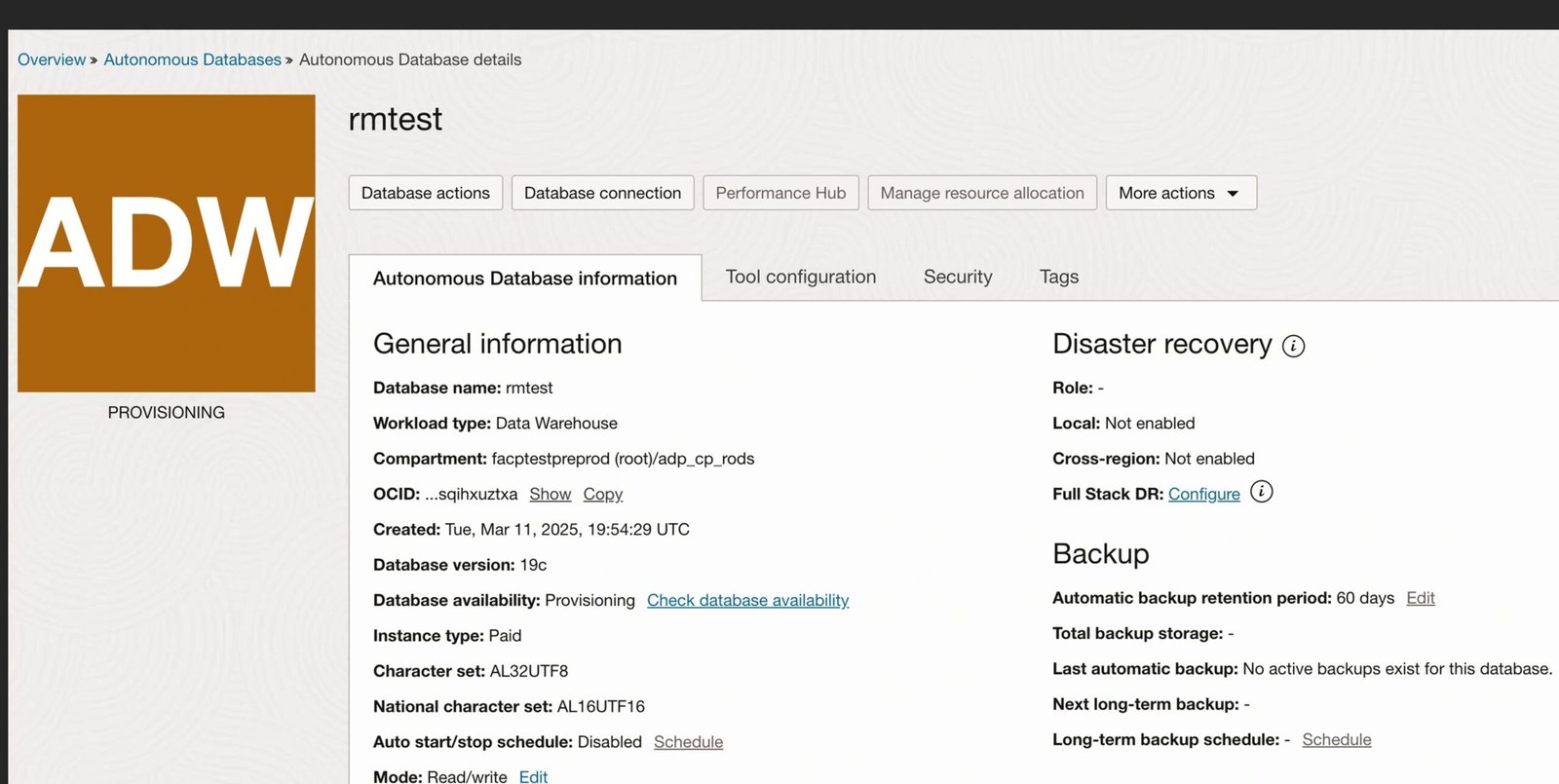
✅ Your ADW instance is now created and ready for use!
🛡️ Step 2: Enabling Autonomous Data Guard (ADG)
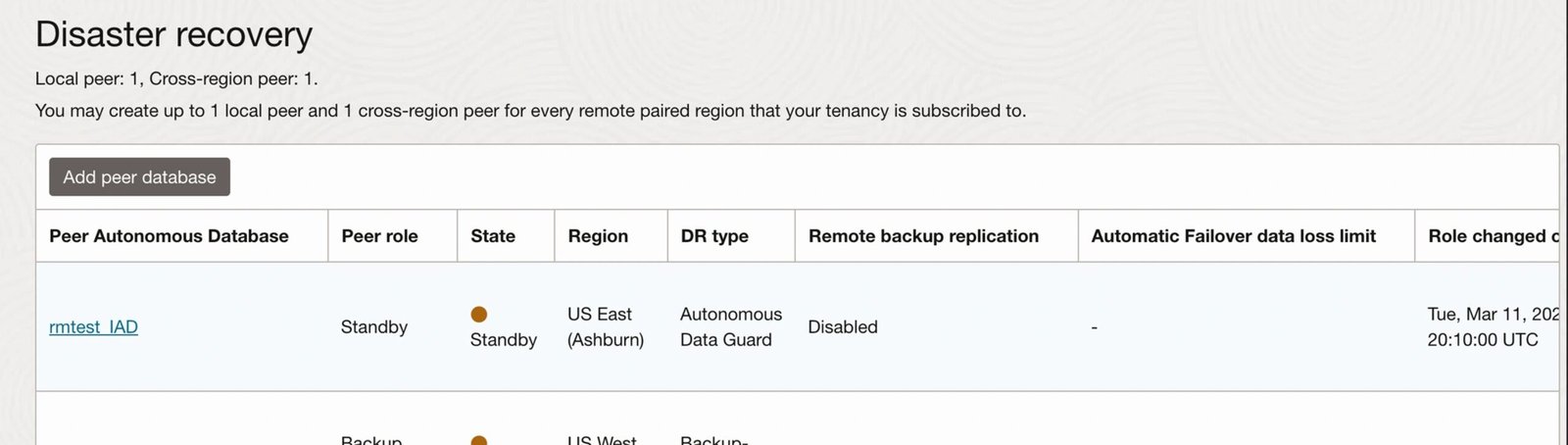
Autonomous Data Guard helps in automatic failover and disaster recovery. If it wasn’t enabled during ADW creation, you can enable it manually.
2.1 Enable Autonomous Data Guard
- In the OCI Console, navigate to your ADW instance.
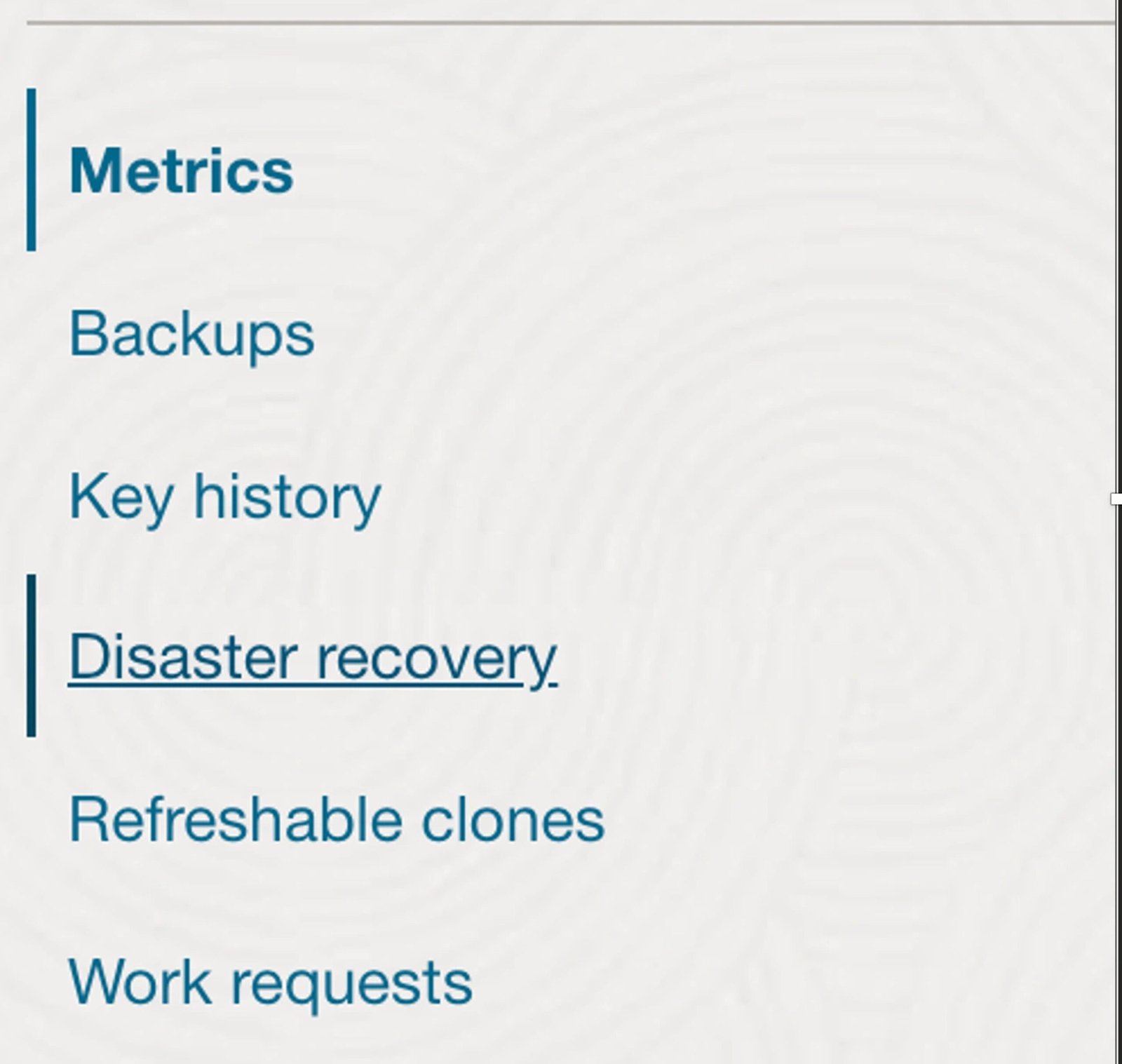
- Click on “Autonomous Data Guard” in the left panel.
- Click “Enable Autonomous Data Guard”.
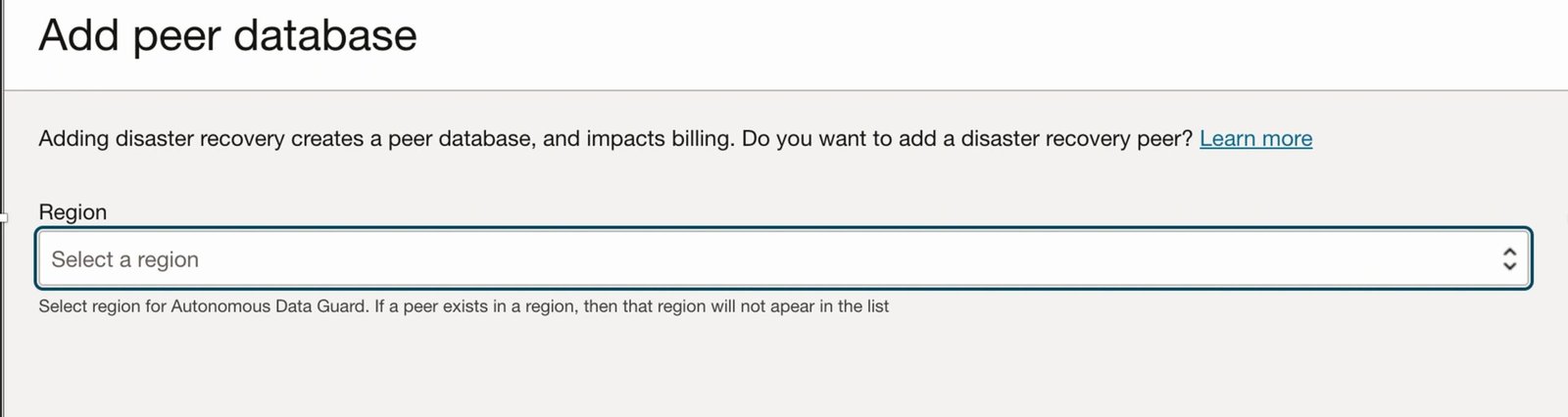
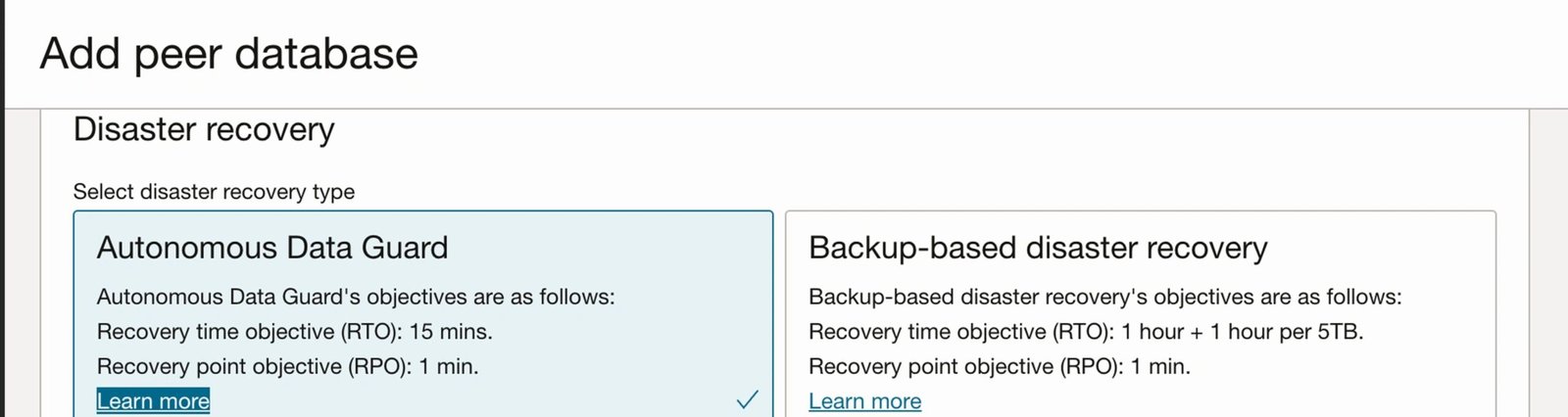
- Select the Standby Database Configuration:
- Same Region Standby (lower latency, faster failover)
- Cross-Region Standby (higher resilience for disasters)
- Click “Enable” and wait for the standby database to be provisioned.
📌 Screenshot: Enable Autonomous Data Guard Option
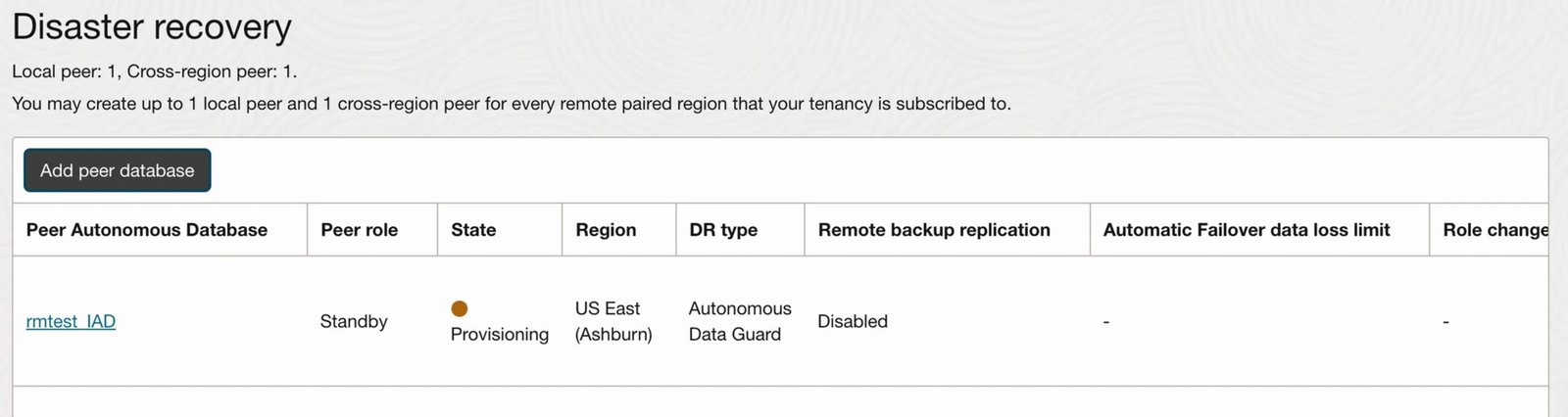
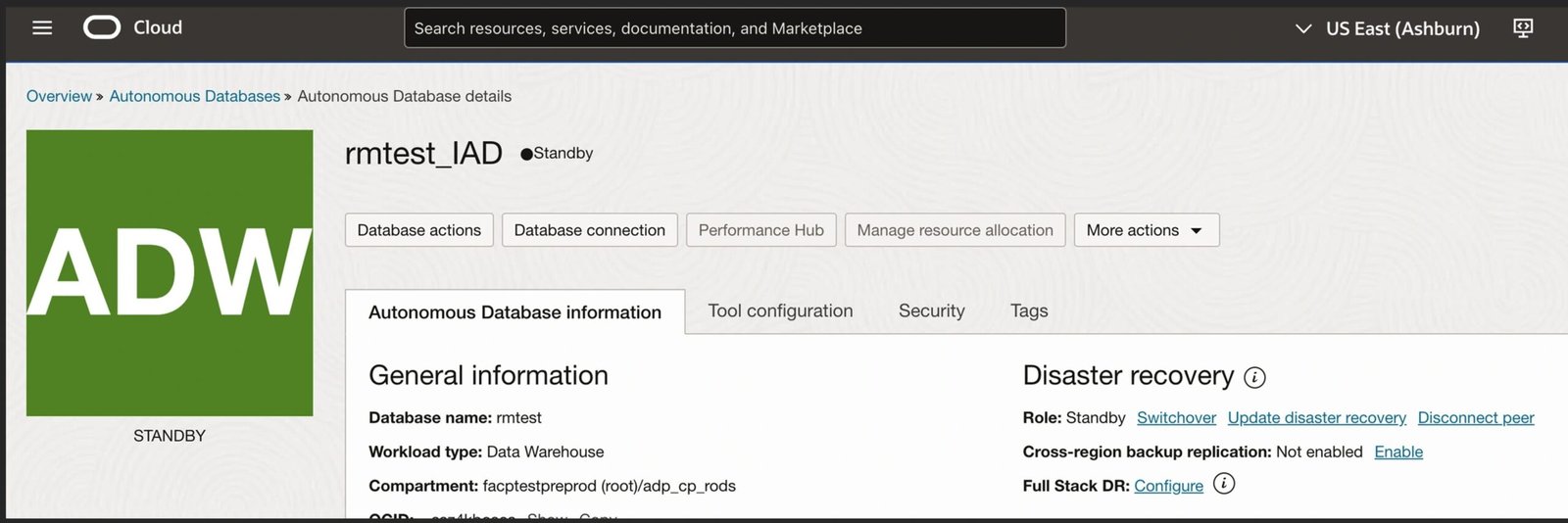
✅ Your Standby ADW instance is now set up!
🔄 Step 3: Performing a Switchover
Switchover is a planned role reversal between the Primary and Standby databases.
3.1 How to Perform a Switchover in OCI
🚫 Unlike traditional Oracle Data Guard, you CANNOT manually execute ALTER DATABASE SWITCHOVER TO STANDBY; in ADB. Instead, use the OCI Console or CLI.
3.2 Switchover via OCI Console
- Go to OCI Console → Autonomous Database.
- Click on your Primary ADB instance.
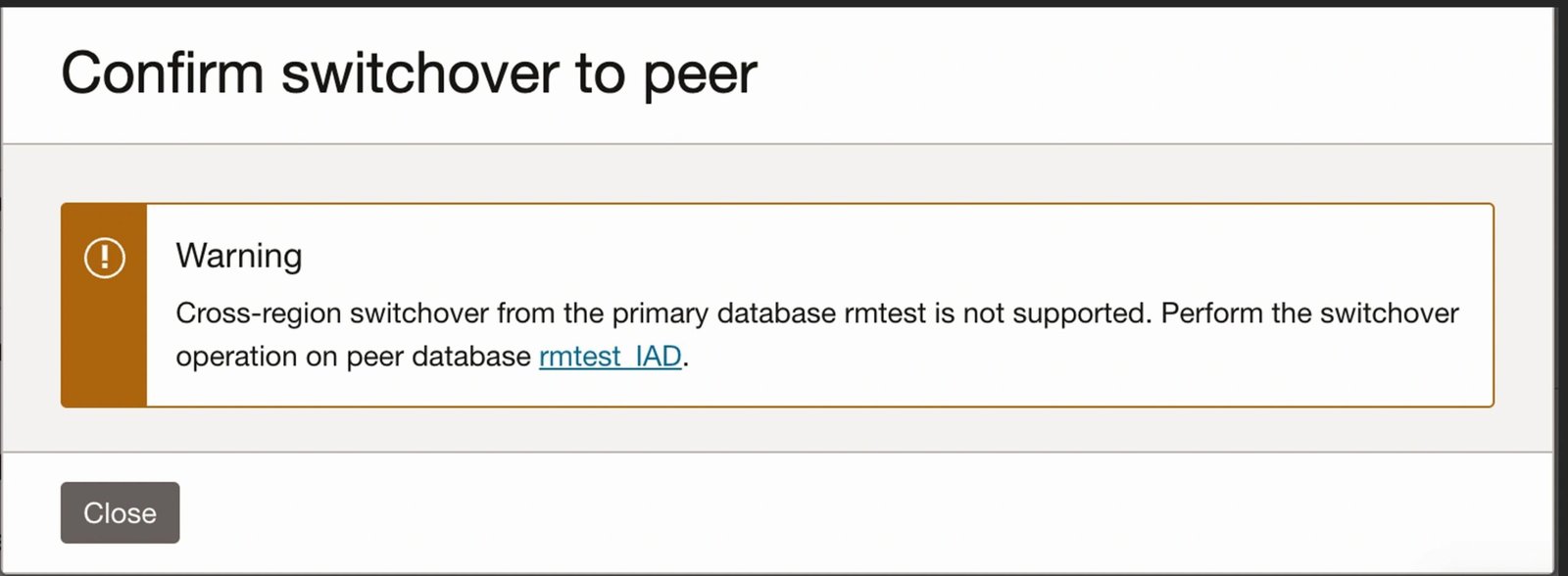
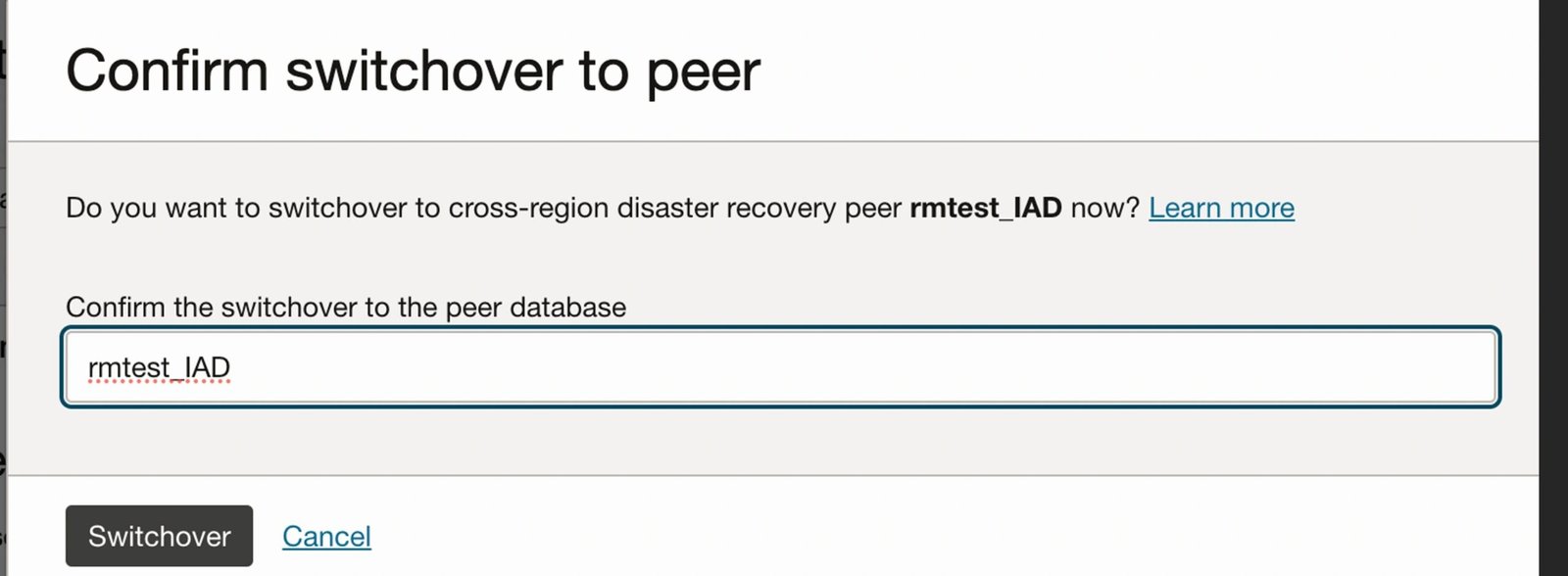
- Under Autonomous Data Guard, click “Switchover”.
- Confirm the action and let Oracle perform the switchover.
📌 Screenshot: Switchover Option in OCI Console
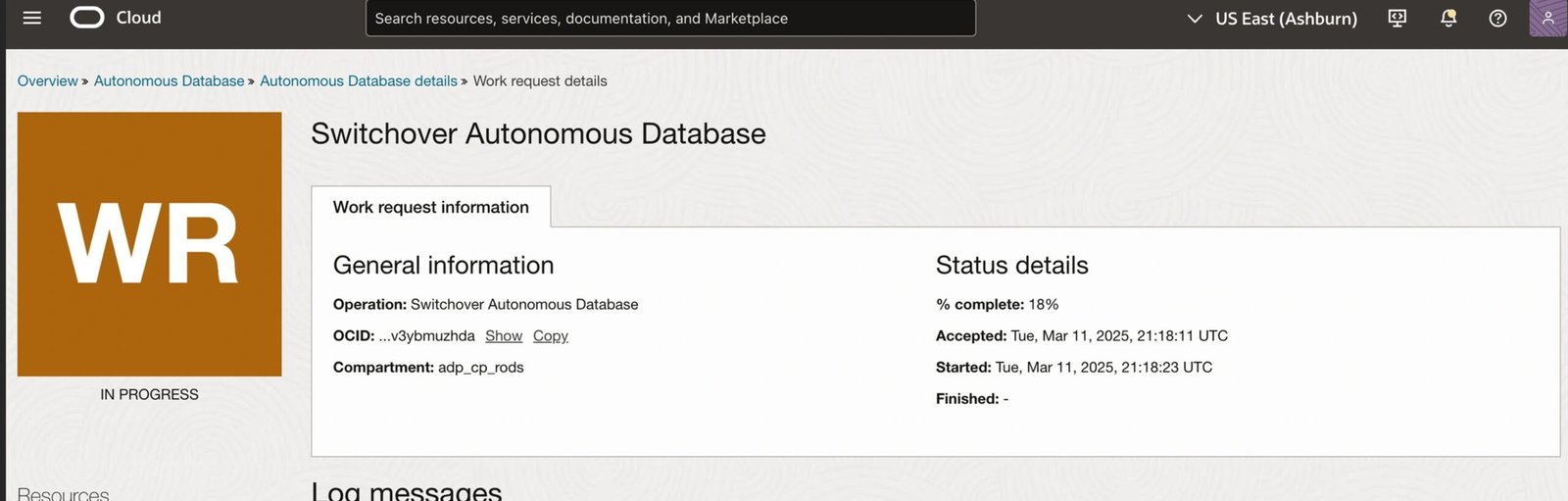
3.3 Switchover via OCI CLI
Alternatively, use the OCI CLI:
oci db autonomous-database switchover --autonomous-database-id <DB_OCID>
✅ Your Standby database is now the new Primary!
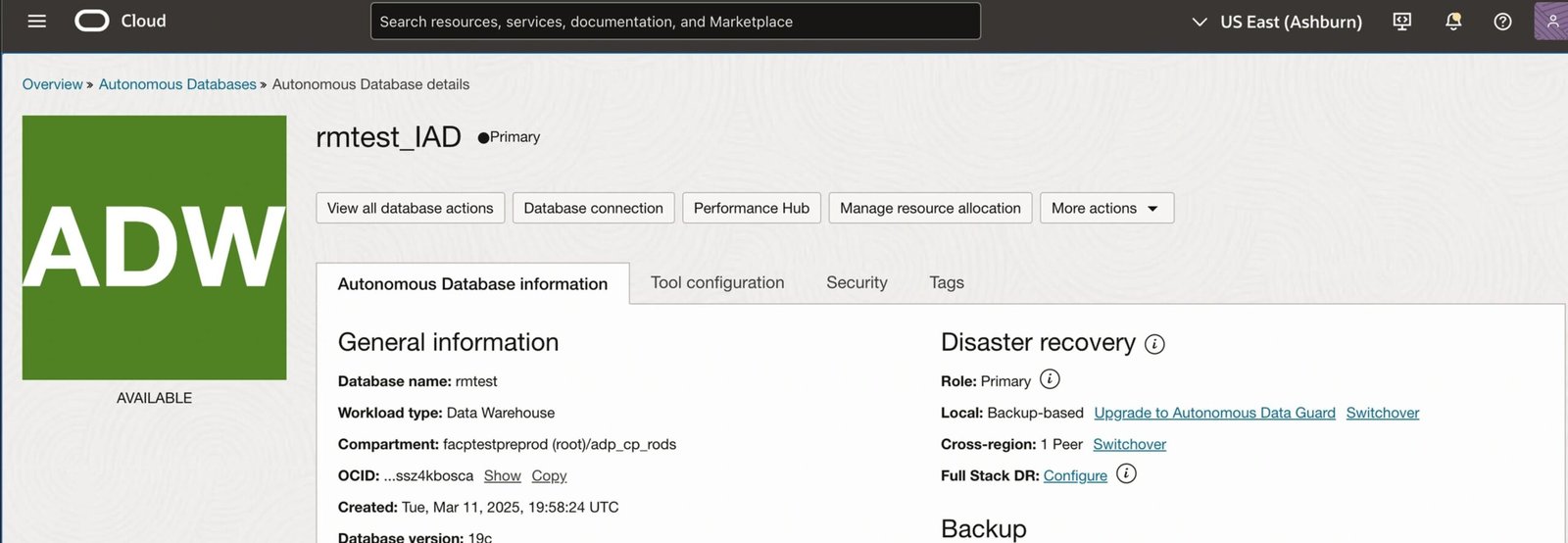
🔎 Step 4: Verifying the Database After Switchover
4.1 Test Connectivity
After switchover, verify the database connection using SQL*Plus:
sqlplus admin@adb_high
Output:
SQL*Plus: Release 19.0.0.0.0 - Production

Connected to: Oracle Database 19c Enterprise Edition
✅ Connection successful!
🚀 Final Thoughts & Best Practices
✔ Enable Autonomous Data Guard for High Availability.
✔ Use OCI Console or CLI for Switchover (No Manual SQL Commands).
✔ Test connectivity after every database role change.
Would you like an OCI CLI script to automate database verification after failover? 🚀 Let us know in the comments!
Author: Rohit Mishri